Author: flexohost45

  • WooCommerce Speed Optimization Guide

    Complete guide to optimizing your WooCommerce store for lightning-fast loading speeds. Learn expert techniques and proven strategies that can dramatically increase your conversions.

    In the competitive world of eCommerce, every millisecond counts. Research from Google, Amazon, and Walmart consistently proves that website speed directly impacts your bottom line. This guide will transform your WooCommerce store into a high-performance sales machine.

    Why Speed Matters

    The Speed-Revenue Connection

    The relationship between page load time and revenue is exponential. Every second of delay compounds into significant revenue loss.

    Load Time Bounce Rate Conversion Loss Monthly Loss (per ৳10L revenue)
    1 second 9% Baseline ,
    2 seconds 15% -7% -৳70,000
    3 seconds 32% -16% -৳1.6 lakh
    4 seconds 45% -25% -৳2.5 lakh
    5+ seconds 58% -35% -৳3.5 lakh

    For a store generating ৳10 lakh/month, just a 1-second improvement could mean an additional ৳70,000-৳1.5 lakh in monthly revenue.

    Real-World Case Study: Bangladeshi Fashion Store

    A mid-sized fashion eCommerce store reduced their load time from 4.2s to 1.8s. Results after 90 days:

    Metric Before After Change
    Load Time 4.2s 1.8s ↓57%
    Bounce Rate 58% 31% ↓46%
    Pages/Session 2.1 4.7 ↑124%
    Conversion Rate 1.2% 2.8% ↑133%
    Monthly Revenue ৳45 lakh ৳1.05 crore ↑133%

    Same traffic, same products, same prices,just faster loading. Speed optimization delivered a ৳60 lakh/month revenue increase.


    Core Web Vitals Explained

    Google uses these three metrics as ranking factors. Understanding them is essential for both SEO and conversions.

    Metric What It Measures Poor Good Excellent
    LCP Largest content paint >4s <2.5s <1.5s
    FID First input delay >300ms <100ms <50ms
    CLS Layout shift score >0.25 <0.1 <0.05

    LCP (Largest Contentful Paint)

    The time until your main content is visible. For WooCommerce, this is typically your hero image or product grid.

    Common LCP Issues:

    • Slow server response (TTFB)
    • Render-blocking CSS/JavaScript
    • Slow image loading
    • Client-side rendering delays

    FID (First Input Delay)

    How quickly your page responds to user interaction. Critical for “Add to Cart” buttons.

    Common FID Issues:

    • Heavy JavaScript execution
    • Long main-thread tasks
    • Third-party scripts (analytics, chat widgets)
    • Unoptimized WooCommerce cart fragments

    CLS (Cumulative Layout Shift)

    Visual stability during loading. Nothing frustrates users more than clicking a button that moves.

    Common CLS Issues:

    • Images without width/height attributes
    • Ads loading without reserved space
    • Web fonts causing text reflow
    • Dynamically injected content

    Hosting Infrastructure

    Your hosting sets the performance ceiling. No amount of optimization can overcome poor infrastructure.

    Server Technology Comparison

    Server Static Speed PHP Speed Memory WooCommerce Rating
    Apache Moderate Slow High ★★☆☆☆
    Nginx Fast Moderate Low ★★★☆☆
    LiteSpeed 20x faster 6x faster Very Low ★★★★★

    Why LiteSpeed Wins for WooCommerce

    Performance Benefits:

    • 20x faster than Apache for static files
    • 6x faster PHP processing via LSAPI
    • Native HTTP/3 and QUIC protocol support
    • Built-in page caching at server level

    WooCommerce Integration:

    • Private cache for logged-in customers
    • Separate cache for cart contents
    • Automatic purge on product updates
    • ESI for dynamic cart widgets

    Recommended Server Specifications

    Store Size Products PHP Memory Storage Cache
    Small <500 8.1 256MB SSD File
    Medium 500-5K 8.2 512MB NVMe Redis
    Large 5K+ 8.3 1GB NVMe RAID Redis Cluster

    Recommended Setup: Look for hosting that includes LiteSpeed Enterprise, NVMe storage, and pre-configured Redis,these are essential for optimal WooCommerce performance.


    Caching Strategy

    Proper caching can make your store 100x faster. Understanding the cache layers is essential.

    The Four Cache Layers

    Layer What It Caches Location Speed Gain TTL
    Browser CSS, JS, images Visitor device 90%+ repeat 1 year
    Page HTML pages Server/CDN 10-50x 1 hour-1 day
    Object DB queries Redis 2-5x 1 hour
    Opcode Compiled PHP Server RAM 3x Until change

    WooCommerce Caching Challenges

    Element Challenge Solution
    Cart widget Different per user ESI (Edge Side Includes)
    Logged-in users Personalized content Private cache per user
    Product prices Frequent changes Short TTL + smart purging
    Stock levels Real-time updates AJAX refresh, cached page
    Recently viewed User-specific JavaScript/localStorage

    Essential wp-config.php Settings

    Add these lines to enable Redis object caching:

    define('WP_REDIS_HOST', '127.0.0.1');
    define('WP_REDIS_PORT', 6379);
    define('WP_REDIS_DATABASE', 0);
    define('WP_CACHE', true);
    

    Pages to NEVER Cache

    • /cart/
    • /checkout/
    • /my-account/
    • Any page with forms

    Image Optimization

    Images account for 60-80% of page weight. Optimizing them delivers the biggest performance gains.

    Image Format Comparison

    Format Size vs JPEG Browser Support Best For
    JPEG Baseline 100% Photos (fallback)
    PNG +50-100% 100% Logos with transparency
    WebP -25-35% 97% All product images
    AVIF -50% 85% Progressive enhancement

    Optimal Image Dimensions

    Image Type Dimensions Max Size Format
    Product thumbnail 300×300px 30KB WebP
    Product main 800×800px 100KB WebP
    Product zoom 1200×1200px 150KB WebP
    Category banner 1920×600px 200KB WebP
    Blog featured 1200×630px 100KB WebP

    WebP Conversion with .htaccess

    Add this to your .htaccess file to serve WebP images automatically:

    <IfModule mod_rewrite.c>
      RewriteEngine On
      RewriteCond %{HTTP_ACCEPT} image/webp
      RewriteCond %{REQUEST_FILENAME}.webp -f
      RewriteRule ^(.+)\.(jpe?g|png)$ $1.$2.webp [T=image/webp,L]
    </IfModule>
    

    Lazy Loading Implementation

    Add native lazy loading to your images:

    <img src="product.webp" loading="lazy" decoding="async" width="800" height="800" alt="Product Name">
    

    Quick Optimization Tips

    • Enable WebP conversion in LiteSpeed Cache
    • Use ShortPixel or Imagify for compression
    • Enable lazy loading for below-fold images
    • Always specify width and height attributes
    • Compress before upload (TinyPNG, Squoosh)

    Database Tuning

    WooCommerce is database-heavy. A bloated database can add seconds to every page load.

    Critical Database Tables

    Table Contents Growth Rate Performance Impact
    wp_postmeta Product data, order details Very High Critical
    wp_posts Products, orders, coupons Medium High
    wp_options Settings, transients Medium High (autoload)
    wp_woocommerce_sessions Cart sessions High Medium

    Maintenance Schedule

    Task Frequency Impact
    Delete expired transients Daily High
    Clean old sessions Daily Medium
    Remove spam comments Weekly Low
    Delete post revisions Weekly Medium
    Optimize tables Monthly High
    Remove orphaned meta Monthly Medium

    Database Cleanup Queries

    Delete expired transients:

    DELETE FROM wp_options 
    WHERE option_name LIKE '%_transient_%' 
    AND option_name NOT LIKE '%_transient_timeout_%';
    

    Clean old WooCommerce sessions:

    DELETE FROM wp_woocommerce_sessions 
    WHERE session_expiry < UNIX_TIMESTAMP();
    

    Prevention Settings (wp-config.php)

    Add these lines to prevent database bloat:

    define('WP_POST_REVISIONS', 3);
    define('EMPTY_TRASH_DAYS', 7);
    define('AUTOSAVE_INTERVAL', 300);
    

    Plugin Optimization

    The average WooCommerce store has 30-50 plugins. Many are unnecessary or poorly optimized.

    Plugin Performance Impact

    Plugin Type Load Time Impact Examples
    Page builders +100-500ms Elementor, Divi, Visual Composer
    Sliders +100-300ms Revolution Slider, Layer Slider
    Security +50-200ms Wordfence, Sucuri, iThemes
    Social sharing +50-150ms Social Warfare, AddThis
    SEO +20-100ms Yoast, RankMath
    Analytics +30-100ms GA plugins, Jetpack Stats

    Heavy Plugins to Replace

    Heavy Plugin Issue Lighter Alternative
    YITH Wishlist Database queries TI Wishlist
    Revolution Slider File size Native Gutenberg blocks
    Visual Composer Bloated code Kadence Blocks
    Jetpack Too many features Individual plugins
    WPML Memory usage Polylang

    Recommended Lightweight Stack

    Function Plugin Why
    Caching LiteSpeed Cache Server integration
    Security Wordfence Well-optimized
    SEO RankMath Feature-rich, fast
    Images ShortPixel Best compression
    Backup UpdraftPlus Scheduled, efficient
    Forms Fluent Forms Lightweight

    Disable Cart Fragments (functions.php)

    WooCommerce cart fragments can slow down non-shop pages:

    add_action('wp_enqueue_scripts', function() {
        if (!is_woocommerce() && !is_cart() && !is_checkout()) {
            wp_dequeue_script('wc-cart-fragments');
        }
    }, 99);
    

    CDN Setup

    A CDN serves content from servers closest to your visitors, reducing latency by 50-85%.

    CDN Performance Impact

    Visitor Location Without CDN With CDN Improvement
    Bangladesh → Bangladesh 200ms 50ms 75% faster
    Bangladesh → India 400ms 80ms 80% faster
    Bangladesh → USA/Europe 800ms 120ms 85% faster

    Cloudflare Page Rules

    Priority URL Pattern Action
    1 /cart/* Bypass Cache
    2 /checkout/* Bypass Cache
    3 /my-account/* Bypass Cache
    4 /* Cache Everything, Edge TTL: 1 month

    Cloudflare Performance Settings

    Setting Value Impact
    Auto Minify HTML, CSS, JS Reduces file size
    Brotli Compression ON Better than gzip
    Early Hints ON Faster resource loading
    HTTP/3 (QUIC) ON Faster connections
    Always Use HTTPS ON Security + SEO

    Browser Caching (.htaccess)

    Add these rules for optimal browser caching:

    <IfModule mod_expires.c>
      ExpiresActive On
      ExpiresByType image/webp "access plus 1 year"
      ExpiresByType image/jpeg "access plus 1 year"
      ExpiresByType image/png "access plus 1 year"
      ExpiresByType text/css "access plus 1 month"
      ExpiresByType application/javascript "access plus 1 month"
      ExpiresByType font/woff2 "access plus 1 year"
    </IfModule>
    

    Mobile Performance

    Over 70% of eCommerce traffic is mobile. Mobile optimization is no longer optional.

    Mobile vs Desktop Comparison

    Factor Desktop Mobile Solution
    Bandwidth 50-100 Mbps 5-50 Mbps Smaller assets
    CPU High Limited Less JavaScript
    Screen Large Small Responsive images
    Input Mouse Touch Larger tap targets

    Responsive Images (srcset)

    Serve appropriately-sized images for each device:

    <img 
      srcset="product-400.webp 400w, 
              product-800.webp 800w, 
              product-1200.webp 1200w"
      sizes="(max-width: 600px) 400px, 
             (max-width: 1200px) 800px, 
             1200px"
      src="product-800.webp"
      alt="Product Name"
      loading="lazy"
    >
    

    Mobile Optimization Checklist

    • Serve smaller images via srcset
    • Reduce products per page (8-12 vs 16-24)
    • Defer non-critical JavaScript
    • Use system fonts or preload web fonts
    • Minimize third-party scripts
    • Test on real devices, not just emulators

    Monitoring Tools

    Continuous monitoring catches regressions before they impact revenue.

    Recommended Testing Tools

    Tool Best For Free Tier URL
    PageSpeed Insights Core Web Vitals Unlimited pagespeed.web.dev
    GTmetrix Waterfall analysis 3 tests/day gtmetrix.com
    WebPageTest Multi-location Unlimited webpagetest.org
    Chrome DevTools Development Unlimited Built into Chrome

    Target Performance Metrics

    Metric Poor Acceptable Good Excellent
    TTFB >600ms 200-600ms 100-200ms <100ms
    LCP >4s 2.5-4s 1.5-2.5s <1.5s
    Total Size >5MB 2-5MB 1-2MB <1MB
    HTTP Requests >100 50-100 25-50 <25
    PageSpeed Score <50 50-75 75-90 90+

    Action Checklist

    This Week (Quick Wins)

    Task Priority Time Impact
    Switch to LiteSpeed hosting High 1 hour 50-70% faster
    Enable LiteSpeed Cache High 10 min 10-50x faster
    Enable Redis object caching High 5 min 2-5x faster DB
    Convert images to WebP High 30 min 25-35% smaller
    Enable lazy loading Medium 5 min Faster initial load

    This Month (High Impact)

    Task Priority Time Impact
    Set up Cloudflare CDN High 30 min 50-85% faster global
    Audit and remove plugins High 1 hour 100-500ms faster
    Clean database Medium 15 min 20-50% faster queries
    Optimize all images Medium 2 hours 40-60% smaller pages
    Defer non-critical JS Medium 30 min Better FID score

    Ongoing (Maintenance)

    Task Frequency Impact
    Run speed tests Weekly Catch regressions
    Clean database Monthly Prevent bloat
    Review plugins Quarterly Remove unused
    Monitor Core Web Vitals Ongoing SEO rankings

    Expected Results

    Optimization Stage Speed Improvement Conversion Impact Revenue Impact (per ৳10L)
    Hosting upgrade 50-70% faster +10-15% +৳1-1.5 lakh/month
    Caching setup 80-90% faster +15-25% +৳1.5-2.5 lakh/month
    Full optimization 90-95% faster +25-50% +৳2.5-5 lakh/month

    Get Started

    At FlexoHost, our infrastructure is built specifically for high-performance WooCommerce stores:

    Feature Included
    LiteSpeed Enterprise
    NVMe SSD Storage
    Redis Object Cache
    Free SSL Certificate
    24/7 WordPress Support
    Free Migration

    Get 20+ Premium SEO & Website Optimization Tools included with all hosting plans.


    Last updated: April 2026 | FlexoHost Technical Team


    Written by

    FlexoHost Team

    Technical Writer
  • How to Create a WordPress Staging Site

    Test changes safely by creating a staging environment for your WordPress site.

    What is a Staging Site?

    A staging site is a private copy of your live website where you can safely test changes, updates, and new features without affecting your visitors or breaking your live site.

    Environment Purpose Visibility Database
    Production Live site for visitors Public Live data
    Staging Testing changes Private Copy of live
    Development Building features Private Test data

    Why Use a Staging Site?

    Risk-Free Testing

    Scenario Without Staging With Staging
    Plugin update breaks site Visitors see errors Fix before going live
    Theme change looks wrong Brand damage Test privately first
    Code bug crashes site Revenue loss Catch in testing
    Database corruption Data loss Protected live data

    Common Use Cases

    • Test WordPress core, theme, and plugin updates
    • Preview design and layout changes
    • Debug issues without affecting visitors
    • Train team members on new features
    • Test WooCommerce checkout flows
    • Experiment with new plugins

    Method 1: Hostnin WordPress Toolkit

    The fastest way to create a staging site on Hostnin hosting:

    Step-by-Step Instructions

    1. Log into your cPanel dashboard
    2. Navigate to WordPress Toolkit
    3. Find your website and click Clone
    4. Configure staging options:
    Setting Recommended Value
    Subdomain staging.yoursite.com
    Database Create new (auto)
    Files Copy all
    1. Click Start and wait for completion
    2. Access your staging site at the new URL

    Automatic Features

    • Separate database created automatically
    • Search engines blocked by default
    • Easy push changes to live
    • One-click sync from production

    Method 2: WP Staging Plugin

    Free plugin method for any WordPress host:

    Installation

    # Via WP-CLI
    wp plugin install wp-staging --activate
    

    Or install via WordPress dashboard: Plugins → Add New → Search “WP Staging”

    Creating Staging Site

    1. Go to WP Staging → Create New Staging Site
    2. Name your staging site (e.g., “staging”)
    3. Select files and database tables to clone
    4. Click Start Cloning
    5. Access via yoursite.com/staging

    Plugin Comparison

    Feature WP Staging Free WP Staging Pro Hostnin Toolkit
    Create staging
    Push to live
    Scheduled backups
    External database
    Price Free ৳6,000/year Included

    Method 3: Manual Staging Setup

    For advanced users who need full control:

    Step 1: Create Subdomain

    In cPanel → Subdomains:

    • Subdomain: staging
    • Domain: yoursite.com
    • Document Root: /staging

    Step 2: Copy Files

    # Via SSH or File Manager
    cp -r /public_html/* /staging/
    

    Step 3: Create Database Copy

    -- In phpMyAdmin
    CREATE DATABASE staging_db;
    -- Import production database backup
    

    Step 4: Update wp-config.php

    define('DB_NAME', 'staging_db');
    define('DB_USER', 'staging_user');
    define('DB_PASSWORD', 'secure_password');
    define('WP_HOME', 'https://staging.yoursite.com');
    define('WP_SITEURL', 'https://staging.yoursite.com');
    

    Step 5: Update URLs in Database

    UPDATE wp_options SET option_value = 'https://staging.yoursite.com' 
    WHERE option_name IN ('siteurl', 'home');
    
    UPDATE wp_posts SET post_content = REPLACE(post_content, 
    'https://yoursite.com', 'https://staging.yoursite.com');
    

    Protecting Your Staging Site

    Block Search Engines

    Add to staging robots.txt:

    User-agent: *
    Disallow: /
    

    Password Protection (.htaccess)

    AuthType Basic
    AuthName "Staging Site"
    AuthUserFile /home/user/.htpasswd
    Require valid-user
    

    WordPress Login Protection

    Add to wp-config.php:

    define('WP_ENVIRONMENT_TYPE', 'staging');
    

    Best Practices

    Practice Why It Matters
    Sync regularly Keep staging current with production
    Use separate database Prevent data conflicts
    Block search engines Avoid duplicate content issues
    Password protect Keep staging private
    Test thoroughly Catch issues before going live
    Document changes Track what was modified

    Pushing Changes to Live

    Hostnin Toolkit Method

    1. Make changes on staging
    2. Test thoroughly
    3. Click Push to Live in WordPress Toolkit
    4. Select what to push (files, database, or both)
    5. Review and confirm

    Manual Push

    1. Backup live site first
    2. Export staging database
    3. Copy modified files to production
    4. Import database changes
    5. Clear all caches

    Troubleshooting

    Issue Solution
    White screen after cloning Check wp-config.php database settings
    Images not loading Update URLs in database
    Login redirect loop Clear cookies, check site URLs
    Mixed content warnings Update hardcoded URLs to HTTPS

    Conclusion

    A staging site is essential for professional WordPress development. Whether you use Hostnin’s built-in tools, a plugin, or manual setup, always test changes in staging before pushing to production.

    Pro Tip: Set up a staging workflow: Development → Staging → Production. This ensures thorough testing and reduces the risk of breaking your live site.


    Last updated: April 2026 | FlexoHost Technical Team


    Written by

    FlexoHost Team

    Technical Writer
  • How to Create Professional Email with Your Domain

    n today’s digital world, your email address says a lot about your business. While free email services are convenient, a domain-based email (like info@yourbusiness.com) gives you a clear advantage in professionalism, branding, and control.

    🚀 Key Benefits of Using a Domain Email

    1. Professional Credibility

    A custom email address instantly builds trust. Clients are far more likely to take info@yourbusiness.com seriously than a generic Gmail or Yahoo address.

    2. Strong Brand Identity

    Every email you send reinforces your brand. Using your domain name helps customers remember your business and strengthens your overall identity.

    3. Full Control & Ownership

    With domain email, you fully control your accounts, data, and settings—no dependency on third-party platforms with changing policies.

    4. Multiple Email Addresses

    Create different emails for different purposes, such as:

    This improves organization and customer experience.


    🛠️ How to Create a Domain Email in cPanel

    Setting up your professional email is simple:

    1. Log in to your cPanel account
    2. Navigate to Email Accounts
    3. Click on Create
    4. Enter your desired email username and password
    5. Set your mailbox storage quota
    6. Click Create Account

    That’s it—your professional email is ready to use!


    📥 How to Access Your Email

    You can access your domain email in multiple ways:

    🌐 Webmail

    Use built-in webmail tools like Roundcube for quick browser-based access.

    💻 Email Clients

    Connect your email to desktop apps such as:

    • Microsoft Outlook
    • Mozilla Thunderbird

    📱 Mobile Devices

    Access your email on the go using:

    • Gmail app (Android/iOS)
    • iOS Mail app

    🔐 Best Practices for Managing Domain Email

    To keep your email secure and efficient:

    • Use strong passwords with a mix of letters, numbers, and symbols
    • Enable spam filters to reduce unwanted emails
    • Set up email forwarders for convenience
    • Create aliases for different departments or roles
    • Regularly update passwords for security

    ✅ Final Thoughts

    A professional domain email is not just an option—it’s a necessity for any serious business. It enhances your credibility, strengthens your brand, and gives you full control over your communication.

    If you’re building a business, investing in a domain email is one of the smartest and simplest steps you can take.


  • SSL Certificates Explained: Why HTTPS Matters

    What is SSL?

    SSL (Secure Sockets Layer) encrypts data transmitted between a user’s browser and your website.

    HTTP vs HTTPS

    HTTP HTTPS
    Not encrypted Encrypted
    No padlock Shows padlock
    “Not Secure” warning Trusted
    Bad for SEO Good for SEO

    Why You Need SSL

    1. Security

    Protects sensitive data:

    • Login credentials
    • Credit card numbers
    • Personal information

    2. Trust

    Visitors trust sites with the padlock icon.

    3. SEO

    Google ranks HTTPS sites higher.

    4. Compliance

    Required for PCI compliance if accepting payments.

    Types of SSL Certificates

    Domain Validated (DV)

    • Basic verification
    • Issued in minutes
    • Free options available

    Organization Validated (OV)

    • Company verification
    • More trust indicators
    • 1-3 days to issue

    Extended Validation (EV)

    • Extensive verification
    • Green bar (legacy browsers)
    • Highest trust level

    How to Install SSL

    On FlexoHost (Automatic)

    1. Log in to cPanel
    2. Go to SSL/TLS Status
    3. Click “Run AutoSSL”

    That’s it! Free Let’s Encrypt SSL is installed automatically.

    Force HTTPS

    Add to .htaccess:

    RewriteEngine On
    RewriteCond %{HTTPS} off
    RewriteRule ^(.*)$ https://%{HTTP_HOST}%{REQUEST_URI} [L,R=301]
    

    Conclusion

    SSL is essential for any modern website. With free certificates available, there’s no excuse not to have one.

  • How to Optimize Your WordPress Database

    How to Optimize Your WordPress Database

    Why Database Optimization Matters

    Your WordPress database grows over time with unnecessary data that slows down every page load. A bloated database can add 1-3 seconds to your load time.

    Common Database Bloat Sources

    Source Growth Rate Impact on Speed
    Post revisions High Medium
    Auto-drafts Medium Low
    Spam comments High Medium
    Transient options Very High High
    Orphaned post meta Medium High
    Expired sessions High Medium
    Unused tables Low Medium

    Real-World Impact

    Database Size Query Time Page Load Impact
    <50MB <0.1s Minimal
    50-200MB 0.1-0.5s Noticeable
    200-500MB 0.5-1.5s Significant
    >500MB >1.5s Critical

    Understanding WordPress Tables

    Core Tables

    Table Purpose Bloat Risk
    wp_posts Posts, pages, revisions High
    wp_postmeta Post metadata Very High
    wp_options Settings, transients High
    wp_comments All comments Medium
    wp_commentmeta Comment metadata Medium
    wp_terms Categories, tags Low
    wp_usermeta User metadata Low

    WooCommerce Tables

    Table Purpose Bloat Risk
    wp_woocommerce_sessions Cart sessions Very High
    wp_wc_orders Order data Medium
    wp_wc_order_stats Analytics High

    Method 1: WP-Optimize Plugin

    The easiest way to clean your database:

    Installation

    wp plugin install wp-optimize --activate
    

    Recommended Cleanup Settings

    Option Action Frequency
    Post revisions Delete all Weekly
    Auto-drafts Delete all Weekly
    Trashed posts Delete all Weekly
    Spam comments Delete all Daily
    Transients Delete expired Daily
    Pingbacks/Trackbacks Delete all Monthly

    Scheduling Automatic Cleanups

    1. Go to WP-Optimize → Settings
    2. Enable scheduled cleanups
    3. Set frequency (weekly recommended)
    4. Select cleanup options
    5. Save changes

    Method 2: Manual SQL Queries

    For advanced users who prefer direct database access:

    Delete Post Revisions

    DELETE FROM wp_posts WHERE post_type = 'revision';
    
    -- Also clean orphaned meta
    DELETE FROM wp_postmeta 
    WHERE post_id NOT IN (SELECT ID FROM wp_posts);
    

    Delete Expired Transients

    DELETE FROM wp_options 
    WHERE option_name LIKE '%_transient_%' 
    AND option_name NOT LIKE '%_transient_timeout_%';
    
    DELETE FROM wp_options 
    WHERE option_name LIKE '%_transient_timeout_%' 
    AND option_value < UNIX_TIMESTAMP();
    

    Clean WooCommerce Sessions

    DELETE FROM wp_woocommerce_sessions 
    WHERE session_expiry < UNIX_TIMESTAMP();
    

    Delete Spam and Trash Comments

    DELETE FROM wp_comments WHERE comment_approved = 'spam';
    DELETE FROM wp_comments WHERE comment_approved = 'trash';
    
    -- Clean orphaned comment meta
    DELETE FROM wp_commentmeta 
    WHERE comment_id NOT IN (SELECT comment_ID FROM wp_comments);
    

    Optimize All Tables

    -- Run in phpMyAdmin
    OPTIMIZE TABLE wp_posts, wp_postmeta, wp_options, 
    wp_comments, wp_commentmeta, wp_terms, wp_termmeta;
    

    Method 3: WP-CLI Commands

    For developers and advanced users:

    Database Optimization

    # Optimize all tables
    wp db optimize
    
    # Repair tables
    wp db repair
    
    # Check database size
    wp db size --tables
    

    Cleanup Commands

    # Delete all transients
    wp transient delete --all
    
    # Delete expired transients only
    wp transient delete --expired
    
    # Delete all post revisions
    wp post delete $(wp post list --post_type='revision' --format=ids)
    
    # Delete spam comments
    wp comment delete $(wp comment list --status=spam --format=ids)
    

    Bulk Operations

    # Delete revisions older than 30 days
    wp post delete $(wp post list --post_type='revision' --date_query='[{"before":"30 days ago"}]' --format=ids)
    
    # Export before cleanup (safety)
    wp db export backup-before-cleanup.sql
    

    Method 4: phpMyAdmin

    Step-by-Step Optimization

    1. Log into cPanel
    2. Open phpMyAdmin
    3. Select your WordPress database
    4. Click “Check All” to select all tables
    5. From dropdown, select “Optimize table”
    6. Wait for completion

    Identifying Large Tables

    SELECT 
      table_name AS 'Table',
      ROUND(data_length / 1024 / 1024, 2) AS 'Data (MB)',
      ROUND(index_length / 1024 / 1024, 2) AS 'Index (MB)',
      ROUND((data_length + index_length) / 1024 / 1024, 2) AS 'Total (MB)'
    FROM information_schema.TABLES
    WHERE table_schema = 'your_database_name'
    ORDER BY (data_length + index_length) DESC;
    

    Prevention: wp-config.php Settings

    Add these settings to prevent future bloat:

    // Limit post revisions (default: unlimited)
    define('WP_POST_REVISIONS', 3);
    
    // Empty trash faster (default: 30 days)
    define('EMPTY_TRASH_DAYS', 7);
    
    // Increase autosave interval (default: 60 seconds)
    define('AUTOSAVE_INTERVAL', 300);
    
    // Disable post revisions entirely (not recommended)
    // define('WP_POST_REVISIONS', false);
    

    Optimization Schedule

    Task Frequency Method Impact
    Delete spam comments Daily Plugin/Cron Medium
    Clear expired transients Daily Plugin/Cron High
    Delete trashed items Weekly Plugin Medium
    Remove post revisions Weekly Plugin/SQL High
    Optimize tables Monthly phpMyAdmin High
    Full database audit Quarterly Manual High

    Before and After Comparison

    Metric Before Optimization After Optimization
    Database Size 450MB 85MB
    Tables 120 95
    Query Time 1.2s 0.15s
    Page Load 4.5s 1.8s
    TTFB 800ms 200ms

    Troubleshooting

    Issue Cause Solution
    Optimization fails Table corruption Run REPAIR TABLE first
    Slow queries persist Missing indexes Add proper indexes
    Database grows back quickly Plugin issue Audit plugin database usage
    Lock timeout errors Large tables Optimize during low traffic

    Best Practices

    Practice Benefit
    Backup before optimization Safety net
    Optimize during low traffic Prevent locks
    Limit revisions in wp-config Prevent bloat
    Use object caching (Redis) Reduce DB queries
    Regular cleanup schedule Maintain performance
    Monitor database size Catch issues early

    Conclusion

    Regular database optimization is essential for WordPress performance. A clean, optimized database can reduce page load times by 50% or more. Set up automated weekly cleanups and monitor your database size to maintain peak performance.

    Pro Tip: Enable Redis object caching to reduce database queries by up to 80%. Most managed WordPress hosts offer Redis as an add-on or included feature.

  • DNS Configuration: A Beginner’s Complete Guide

    DNS Configuration: A Beginner’s Complete Guide

    Introduction

    DNS Configuration: A Beginner’s Complete Guide is a critical skill for modern website management. Whether you’re a beginner or an experienced webmaster, understanding the concepts and best practices covered in this guide will help you build faster, more secure, and more reliable websites.

    How DNS Works

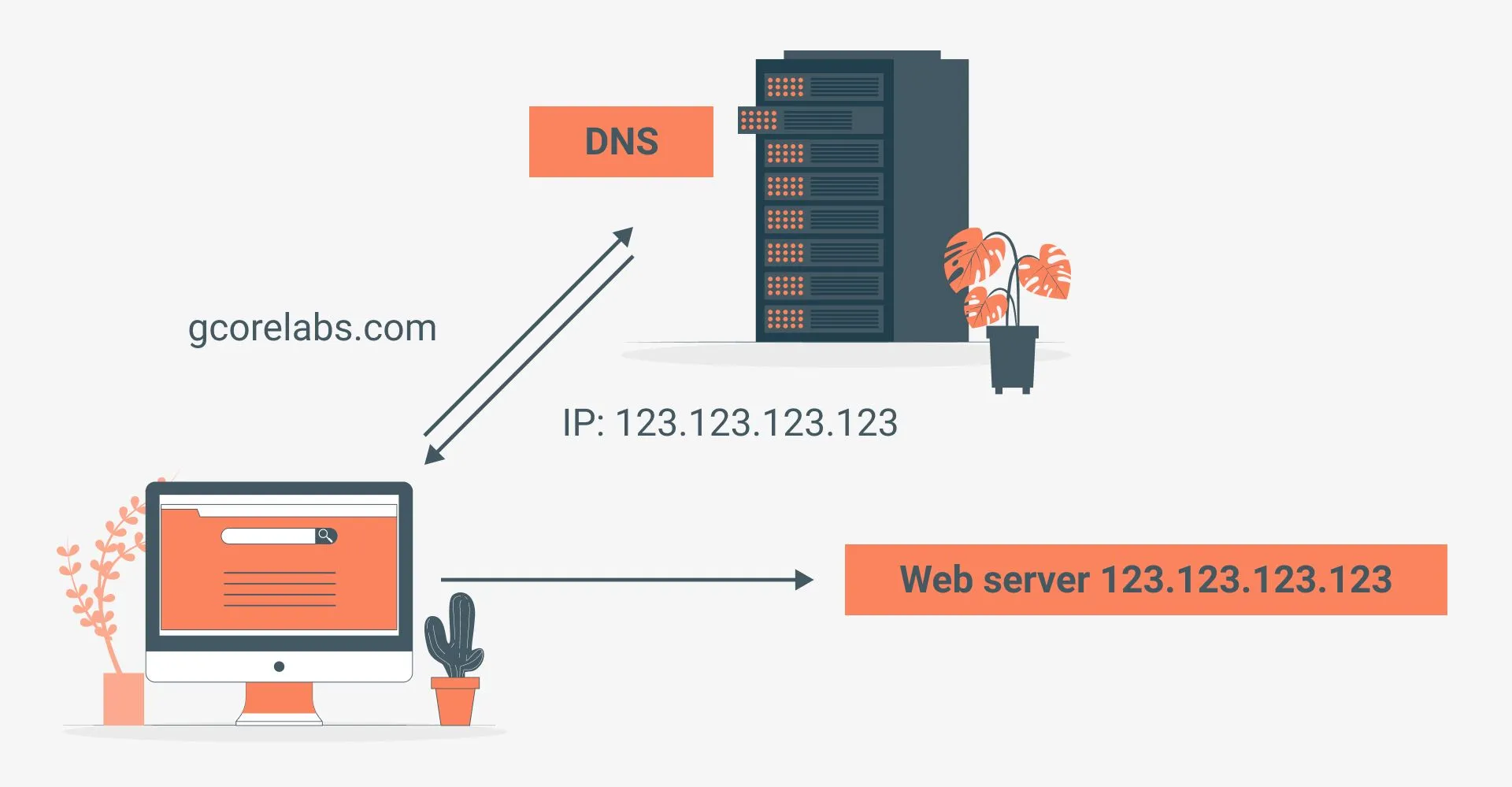
    DNS (Domain Name System) translates human-readable domain names into IP addresses that computers use to communicate. When someone types your domain in a browser, a series of DNS lookups happen in milliseconds.

    The DNS Resolution Process

    1. Browser Cache: Checks if the domain was recently resolved
    2. OS Cache: Checks the operating system’s DNS cache
    3. Recursive Resolver: Your ISP’s DNS server queries the hierarchy
    4. Root Server: Directs to the correct TLD nameserver
    5. TLD Server: Directs to your domain’s authoritative nameserver
    6. Authoritative Server: Returns the IP address for your domain

    Essential DNS Record Types

    Record Purpose Example
    A Maps domain to IPv4 address 93.184.216.34
    AAAA Maps domain to IPv6 address 2606:2800:0220:…
    CNAME Alias pointing to another domain www → example.com
    MX Mail server routing mail.example.com (priority 10)
    TXT Text data (SPF, DKIM, verification) v=spf1 include:…
    NS Authoritative nameservers ns1.hostnin.com
    SRV Service location records VoIP, XMPP services
    CAA SSL certificate authority control letsencrypt.org

    Configuring DNS Records

    In cPanel Zone Editor

    1. Log into cPanel → Zone Editor
    2. Click Manage next to your domain
    3. Click Add Record or edit existing records
    4. Select record type, enter name and value
    5. Set TTL (3600 seconds recommended)
    6. Save changes

    Common Configurations

    Point domain to hosting server:

    Type: A Name: @ Value: YOUR_SERVER_IP TTL: 3600 

    Set up www subdomain:

    Type: CNAME Name: www Value: yourdomain.com TTL: 3600 

    Configure email (Google Workspace):

    Type: MX | Priority: 1 | Value: aspmx.l.google.com Type: MX | Priority: 5 | Value: alt1.aspmx.l.google.com Type: MX | Priority: 5 | Value: alt2.aspmx.l.google.com 

    DNS Propagation

    After making DNS changes, propagation takes time:

    Change Type Typical Time
    A/AAAA records 1-24 hours
    CNAME records 1-24 hours
    MX records 1-48 hours
    NS (nameserver) 24-48 hours

    Pro Tip: Lower TTL to 300 seconds 24 hours before making changes. After propagation, raise it back to 3600.

    Checking Propagation

    • Online: whatsmydns.net , check global propagation status
    • Terminaldig yourdomain.com A +short
    • Windowsnslookup yourdomain.com

    DNS Troubleshooting

    Problem Cause Solution
    Domain not resolving Wrong nameservers Verify NS records at registrar
    Email not working Missing/wrong MX records Check MX configuration
    SSL validation failing Missing DNS record Add required TXT/CNAME record
    Slow resolution High TTL after changes Lower TTL before changes
    Intermittent failures Conflicting records Remove duplicate A records

    DNS Security

    1. Enable DNSSEC if your registrar supports it
    2. Use CAA records to control SSL certificate issuance
    3. Monitor DNS changes for unauthorized modifications
    4. Use reputable DNS providers with DDoS protection
    5. Implement SPF, DKIM, and DMARC for email security

    Best Practices

    1. Always back up before making changes , have a recovery plan ready
    2. Test on staging first , never experiment on your live site
    3. Document your configuration , future you will thank present you
    4. Keep software updated , security patches are critical
    5. Monitor regularly , catch issues before they affect users
    6. Use strong passwords , minimum 16 characters with mixed types
    7. Enable notifications , get alerts for critical events
    8. Review logs periodically , they reveal issues before they escalate

    Conclusion

    DNS Configuration: A Beginner’s Guide is fundamental to running a successful website. The techniques and tools covered in this guide give you a solid foundation. Start with the basics, implement changes incrementally, and always test before deploying to production. For additional assistance, your hosting provider’s support team is always available to help with technical configurations.

    example.com → 192.168.1.1 

    CNAME Record

    Points domain to another domain.

    www.example.com → example.com 

    MX Record

    Specifies mail servers.

    example.com → mail.example.com (priority 10) 

    TXT Record

    Stores text information (SPF, DKIM, verification).

    How to Update DNS

    Step 1: Access DNS Management

    • Log in to your domain registrar
    • Find DNS settings or Zone Editor

    Step 2: Update Nameservers

    Update to your hosting provider’s nameservers (found in your welcome email or hosting dashboard):

    ns1.yourhost.com ns2.yourhost.com 

    Step 3: Wait for Propagation

    DNS changes take 1-48 hours to propagate globally.

    Common Tasks

    Pointing Domain to Hosting

    Add A record:

    • Host: @
    • Points to: [Your server IP]

    Setting Up Email

    Add MX records provided by your email host.

    Verifying Domain Ownership

    Add TXT record with verification code.

    Troubleshooting

    Domain not working?

    1. Check nameservers are correct
    2. Wait 24-48 hours for propagation
    3. Clear browser cache
    4. Try different network

    Conclusion

    DNS might seem complex, but with this guide, you can handle basic configurations confidently.

    Need help? Our support team can help with DNS setup for free.

  • 10 Ways to Speed Up Your WordPress Website in 2025

    Introduction

    A slow website loses visitors. Studies show that 53% of users abandon sites that take longer than 3 seconds to load. In this comprehensive guide, we’ll explore 10 proven techniques to dramatically speed up your WordPress website.

    Why Website Speed Matters

    Before diving into optimization techniques, let’s understand why speed is crucial:

    • SEO Rankings: Google uses page speed as a ranking factor
    • User Experience: Faster sites have lower bounce rates
    • Conversions: Every second of delay reduces conversions by 7%
    • Mobile Users: 73% of mobile users have encountered slow websites

    1. Use LiteSpeed Hosting

    The foundation of a fast website is quality hosting. LiteSpeed servers are up to 20x faster than traditional Apache servers.

    Why LiteSpeed?

    • Built-in caching at server level
    • HTTP/3 and QUIC support
    • Optimized for WordPress
    • Lower resource usage

    Pro Tip: LiteSpeed Enterprise servers provide up to 20x faster performance compared to Apache for WordPress sites.

    2. Enable Caching

    Caching stores static versions of your pages, reducing server load and speeding up delivery.

    Recommended: LiteSpeed Cache Plugin

    # Install via WP-CLI
    wp plugin install litespeed-cache --activate
    

    Key settings to enable:

    • Page Cache: ON
    • Browser Cache: ON
    • Object Cache: ON (if Redis available)
    • Image Optimization: ON

    3. Optimize Images

    Images often account for 50-80% of a webpage’s size. Optimization is critical.

    Best Practices:

    1. Use WebP format – 25-35% smaller than JPEG
    2. Lazy load images – Only load when visible
    3. Resize images – Don’t upload 4000px images for 800px containers
    4. Use CDN – Serve images from edge locations

    Recommended Tools:

    • ShortPixel (best quality)
    • Imagify (easy to use)
    • EWWW Image Optimizer (free option)

    4. Minimize CSS and JavaScript

    Reduce file sizes by removing unnecessary code.

    // Before minification
    function calculateTotal(price, quantity) {
        const subtotal = price * quantity;
        const tax = subtotal * 0.1;
        return subtotal + tax;
    }
    
    // After minification
    function calculateTotal(e,t){const n=e*t;return n+.1*n}
    

    5. Use a Content Delivery Network (CDN)

    CDNs cache your content on servers worldwide, reducing latency for global visitors.

    CDN Provider Free Tier Best For
    Cloudflare Yes General use
    BunnyCDN No (cheap) Performance
    KeyCDN No Enterprise

    6. Enable GZIP Compression

    GZIP can reduce file sizes by up to 70%.

    Add to your .htaccess:

    <IfModule mod_deflate.c>
      AddOutputFilterByType DEFLATE text/html text/css application/javascript
    </IfModule>
    

    7. Optimize Your Database

    Over time, WordPress databases accumulate overhead.

    Monthly Maintenance:

    • Delete post revisions
    • Remove spam comments
    • Clean transients
    • Optimize tables

    Use WP-Optimize plugin for automated cleanup.

    8. Reduce HTTP Requests

    Each file requires a separate request. Minimize them:

    • Combine CSS files
    • Combine JavaScript files
    • Use CSS sprites for icons
    • Inline critical CSS

    9. Choose a Fast Theme

    Your theme affects everything. Look for:

    • Clean, optimized code
    • No bloated frameworks
    • Minimal external dependencies
    • Good reviews for speed

    Recommended: GeneratePress, Astra, Kadence

    10. Monitor and Test Regularly

    Use these tools to measure progress:

    • Google PageSpeed Insights – Core Web Vitals
    • GTmetrix – Detailed waterfall analysis
    • Pingdom – Global speed testing
    • WebPageTest – Advanced diagnostics

    Conclusion

    Implementing these 10 optimizations can dramatically improve your WordPress site speed. Start with hosting and caching for the biggest impact, then work through the other techniques.

    Need help optimizing your site? Our team offers free performance audits for all Hostnin customers. Contact support to get started.