Introduction
DNS Configuration: A Beginner’s Complete Guide is a critical skill for modern website management. Whether you’re a beginner or an experienced webmaster, understanding the concepts and best practices covered in this guide will help you build faster, more secure, and more reliable websites.
How DNS Works
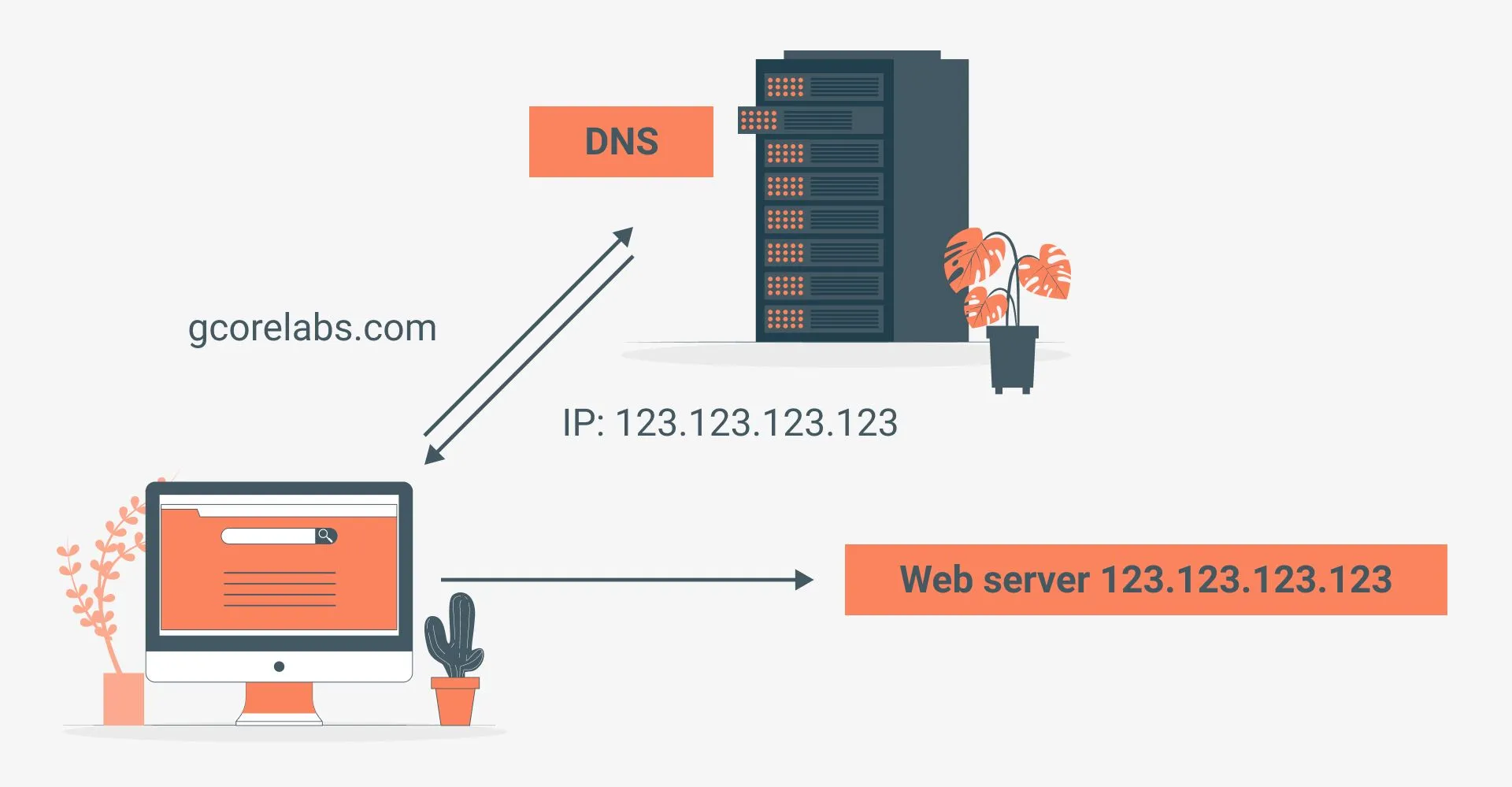
DNS (Domain Name System) translates human-readable domain names into IP addresses that computers use to communicate. When someone types your domain in a browser, a series of DNS lookups happen in milliseconds.
The DNS Resolution Process
- Browser Cache: Checks if the domain was recently resolved
- OS Cache: Checks the operating system’s DNS cache
- Recursive Resolver: Your ISP’s DNS server queries the hierarchy
- Root Server: Directs to the correct TLD nameserver
- TLD Server: Directs to your domain’s authoritative nameserver
- Authoritative Server: Returns the IP address for your domain
Essential DNS Record Types
| Record | Purpose | Example |
|---|---|---|
| A | Maps domain to IPv4 address | 93.184.216.34 |
| AAAA | Maps domain to IPv6 address | 2606:2800:0220:… |
| CNAME | Alias pointing to another domain | www → example.com |
| MX | Mail server routing | mail.example.com (priority 10) |
| TXT | Text data (SPF, DKIM, verification) | v=spf1 include:… |
| NS | Authoritative nameservers | ns1.hostnin.com |
| SRV | Service location records | VoIP, XMPP services |
| CAA | SSL certificate authority control | letsencrypt.org |
Configuring DNS Records
In cPanel Zone Editor
- Log into cPanel → Zone Editor
- Click Manage next to your domain
- Click Add Record or edit existing records
- Select record type, enter name and value
- Set TTL (3600 seconds recommended)
- Save changes
Common Configurations
Point domain to hosting server:
Type: A Name: @ Value: YOUR_SERVER_IP TTL: 3600
Set up www subdomain:
Type: CNAME Name: www Value: yourdomain.com TTL: 3600
Configure email (Google Workspace):
Type: MX | Priority: 1 | Value: aspmx.l.google.com Type: MX | Priority: 5 | Value: alt1.aspmx.l.google.com Type: MX | Priority: 5 | Value: alt2.aspmx.l.google.com
DNS Propagation
After making DNS changes, propagation takes time:
| Change Type | Typical Time |
|---|---|
| A/AAAA records | 1-24 hours |
| CNAME records | 1-24 hours |
| MX records | 1-48 hours |
| NS (nameserver) | 24-48 hours |
Pro Tip: Lower TTL to 300 seconds 24 hours before making changes. After propagation, raise it back to 3600.
Checking Propagation
- Online: whatsmydns.net , check global propagation status
- Terminal:
dig yourdomain.com A +short - Windows:
nslookup yourdomain.com
DNS Troubleshooting
| Problem | Cause | Solution |
|---|---|---|
| Domain not resolving | Wrong nameservers | Verify NS records at registrar |
| Email not working | Missing/wrong MX records | Check MX configuration |
| SSL validation failing | Missing DNS record | Add required TXT/CNAME record |
| Slow resolution | High TTL after changes | Lower TTL before changes |
| Intermittent failures | Conflicting records | Remove duplicate A records |
DNS Security
- Enable DNSSEC if your registrar supports it
- Use CAA records to control SSL certificate issuance
- Monitor DNS changes for unauthorized modifications
- Use reputable DNS providers with DDoS protection
- Implement SPF, DKIM, and DMARC for email security
Best Practices
- Always back up before making changes , have a recovery plan ready
- Test on staging first , never experiment on your live site
- Document your configuration , future you will thank present you
- Keep software updated , security patches are critical
- Monitor regularly , catch issues before they affect users
- Use strong passwords , minimum 16 characters with mixed types
- Enable notifications , get alerts for critical events
- Review logs periodically , they reveal issues before they escalate
Conclusion
DNS Configuration: A Beginner’s Guide is fundamental to running a successful website. The techniques and tools covered in this guide give you a solid foundation. Start with the basics, implement changes incrementally, and always test before deploying to production. For additional assistance, your hosting provider’s support team is always available to help with technical configurations.
example.com → 192.168.1.1
CNAME Record
Points domain to another domain.
www.example.com → example.com
MX Record
Specifies mail servers.
example.com → mail.example.com (priority 10)
TXT Record
Stores text information (SPF, DKIM, verification).
How to Update DNS
Step 1: Access DNS Management
- Log in to your domain registrar
- Find DNS settings or Zone Editor
Step 2: Update Nameservers
Update to your hosting provider’s nameservers (found in your welcome email or hosting dashboard):
ns1.yourhost.com ns2.yourhost.com
Step 3: Wait for Propagation
DNS changes take 1-48 hours to propagate globally.
Common Tasks
Pointing Domain to Hosting
Add A record:
- Host: @
- Points to: [Your server IP]
Setting Up Email
Add MX records provided by your email host.
Verifying Domain Ownership
Add TXT record with verification code.
Troubleshooting
Domain not working?
- Check nameservers are correct
- Wait 24-48 hours for propagation
- Clear browser cache
- Try different network
Conclusion
DNS might seem complex, but with this guide, you can handle basic configurations confidently.
Need help? Our support team can help with DNS setup for free.